Setup guide
Connect OrangeSlice to Claude
About two minutes, start to finish. You'll copy one address and sign in once — there's nothing to install and nothing to configure.
Before you start
An OrangeSlice login
The same username and password you use at admin.orangeslicesport.com. Admins and coaches both work.
A Claude account
Any plan, including the free one — a free account can have one custom connector, and this would be it. Set up at claude.ai in a browser — the setup step isn't available in Claude's mobile app.
The connector switched on
It's off for every organization until we enable it by hand. Email us and it's usually done the same day.
Ask us to turn it onSet it up
- 1
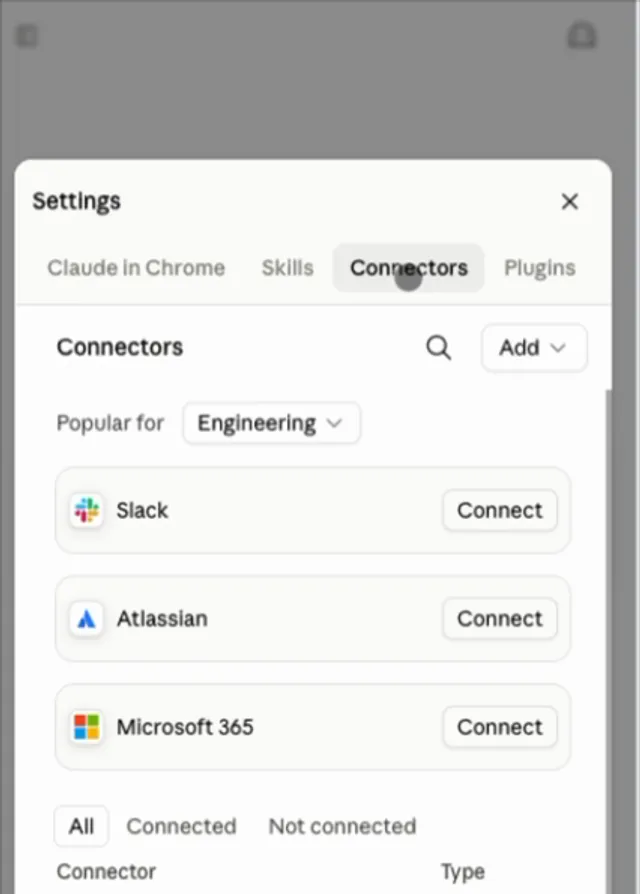
Open claude.ai in a browser, and go to Customize → Connectors.
Use a browser, not the Claude mobile app — adding a custom connector isn't available there yet. On a Team or Enterprise account the owner does this once instead, under Organization settings → Connectors. Everyone else skips to step 5.
- 2
Click the + button, then "Add custom connector."
- 3
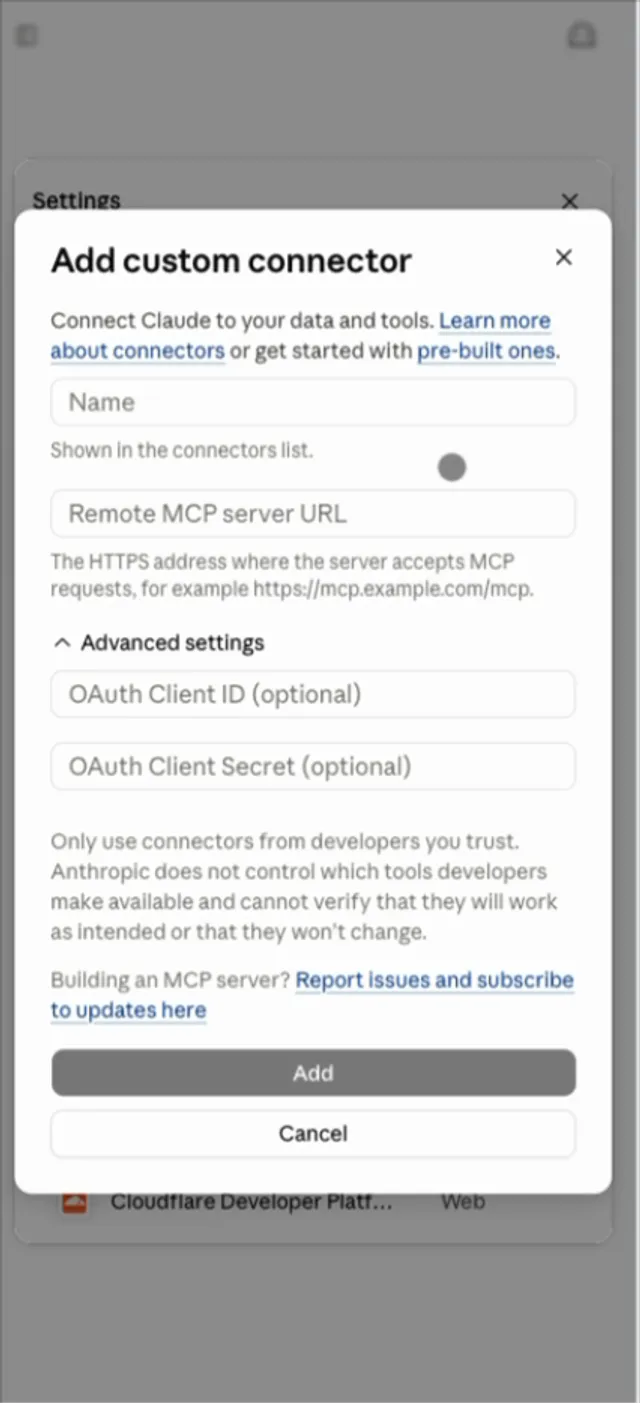
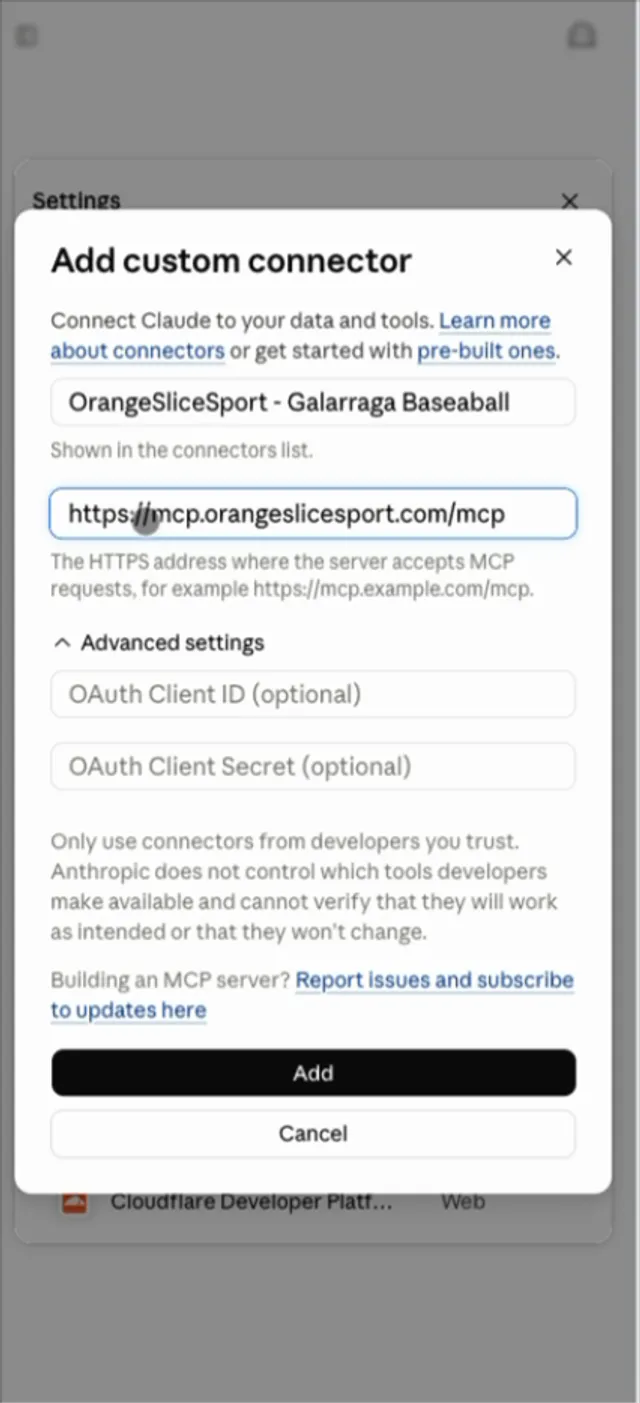
Paste this address in, then click Add.
https://mcp.orangeslicesport.com/mcpLeave everything else alone. You don't need Advanced settings, and there's no client ID or secret to enter.
- 4
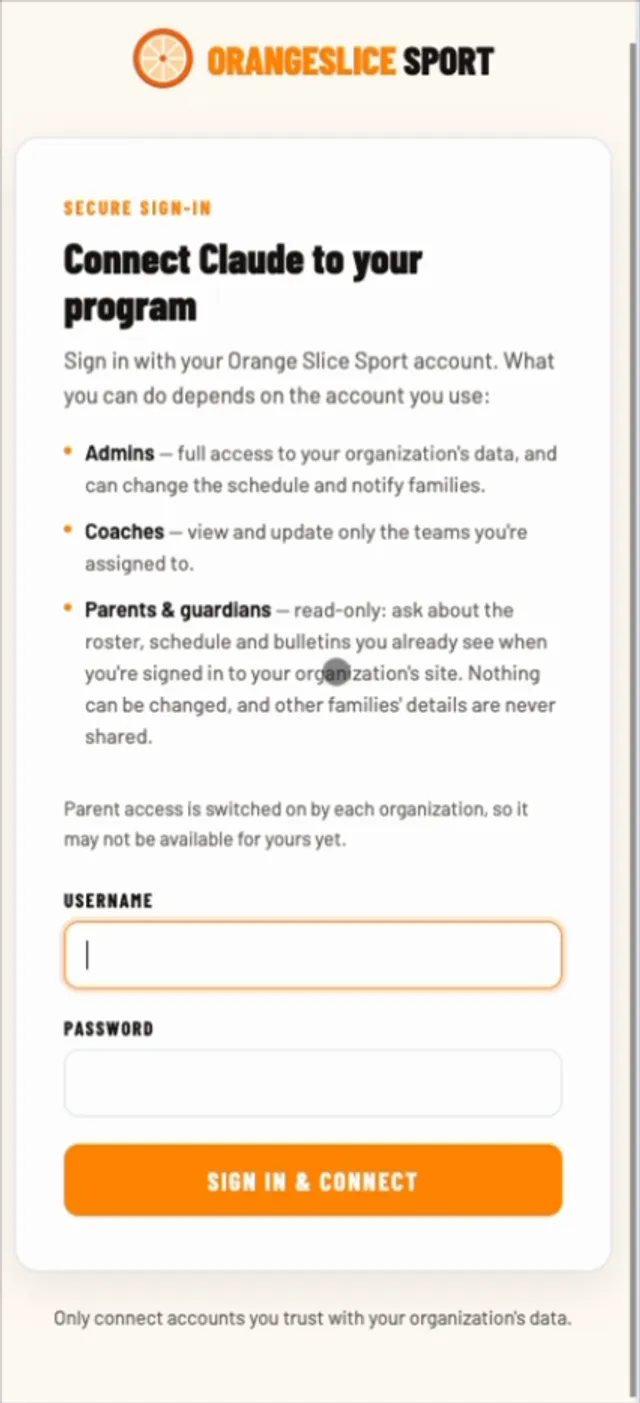
Sign in with your OrangeSlice username and password.
A sign-in window opens. That's our login page, not Claude's — Claude never sees your password. Approve the access it asks for and you're connected.
- 5
Ask it something.
Start with "How many players are on our roster this season?" If a real number comes back, you're done.
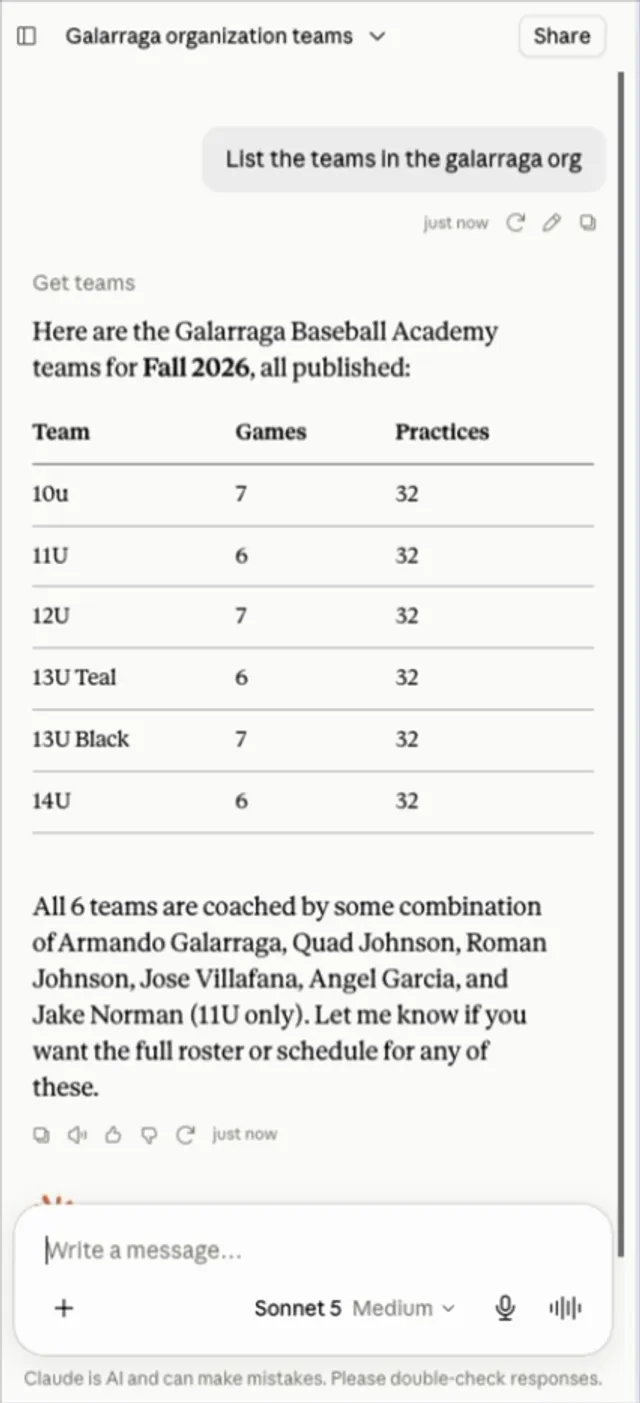
Watch it
The same five steps, plus what you can actually ask once you're connected — a real conversation with a real org's data.
Letting your families connect
Parents and guardians can connect their own Claude account and ask about their own athlete — read-only, and only what they'd already see signed in to your website.
You, once
In OrangeSlice, go to Settings → Features and turn on family access. It's off until you do.
Them, once
Send them this page. Same five steps and the same address — they sign in with their own parent login and get the read-only version automatically.
If something goes wrong
- "Your organization isn't enabled for this."
- We haven't switched it on yet. Email us with your organization name and we'll sort it out.
- It won't accept my username.
- Use the same username you sign in with at admin.orangeslicesport.com — not your email address, unless that's genuinely what you sign in with.
- It says there's no active season.
- Roster, schedule, and registration questions are all about the season happening now. If your season hasn't started yet or has ended, set the current season in the dashboard first.
- A coach can't see another team.
- That's deliberate. Coaches reach only the teams they're assigned to, exactly as in the dashboard.
- I don't have a Connectors menu.
- You're probably on a Team or Enterprise account, where an owner has to add the connector first. Once they have, it appears for you with a Connect button.
- Still stuck?
- Email [email protected] and we'll get on it.